Manage Cyberhaven Safari Extension via Mosyle MDM
Use Mosyle to deploy the Cyberhaven Safari extension through Apple Apps and Books (VPP) and auto-install it on target devices.
Prerequisites
- Access to Apple Business Manager (ABM) to add apps and download the VPP token.
- Mosyle admin permissions to upload the token and create Management Profiles.
Add the extension to ABM and import the token
- Sign in to ABM and go to Apps and Books.
- Search for Cyberhaven Extension in the App Store.
- Click Get and confirm to add it to your library.
- Download the VPP (Content) token: in ABM, open your profile and go to Preferences > Payment and Billing > Content Tokens, then click Download.
- In Mosyle, go to Management > Applications > Apple Apps and Books (VPP).
- Create a new account, provide an Account Name, upload the Content Token, and save.
- Select the newly created account and confirm the Cyberhaven Extension appears under Apps & Books with adequate licenses. 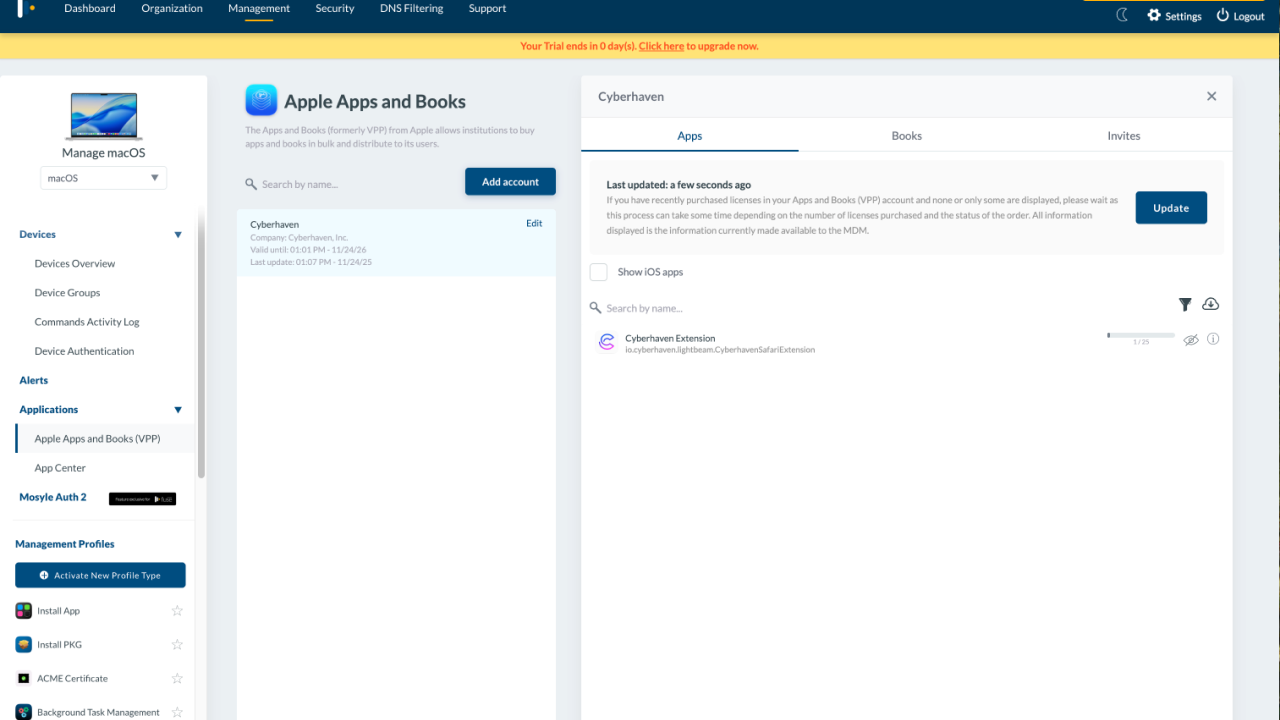
Create the install profile in Mosyle
- Go to Management > Management Profiles > Install an App and click Add a New Profile.
- Enter a unique Profile Name.
- Set Installation Source to Apps and Books (VPP).
- Click Add Application and choose Cyberhaven Extension.
- Under Auto-Install Apps, select Install all apps after saving this profile. 
- Assign the profile to the appropriate devices or groups.
- Click Save.
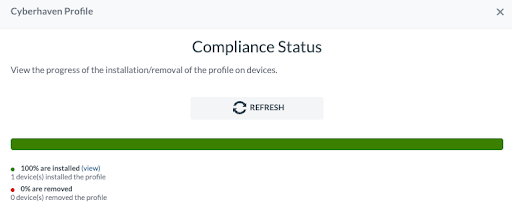
- Verify the Installation Status shows successful deployment.